Configuration
Automatic actions
The plugin requires a working configuration of automatic actions with CLI mode. Check carefully that GLPI scheduler is running every minute.
Downloading carbon intensitiy data
The plugin implements an automatic action for each data provider. Supported sources are :
RTE for France (free, data back to 2012-01-01)
Electricity Map for most countries and regions in the world (free access limited to last 24 hours)
When an automatic action runs for the first time it setups supported regions in database. Once done, you may activate downloads for regions of interest.
Enable / disable carbon intensity data download
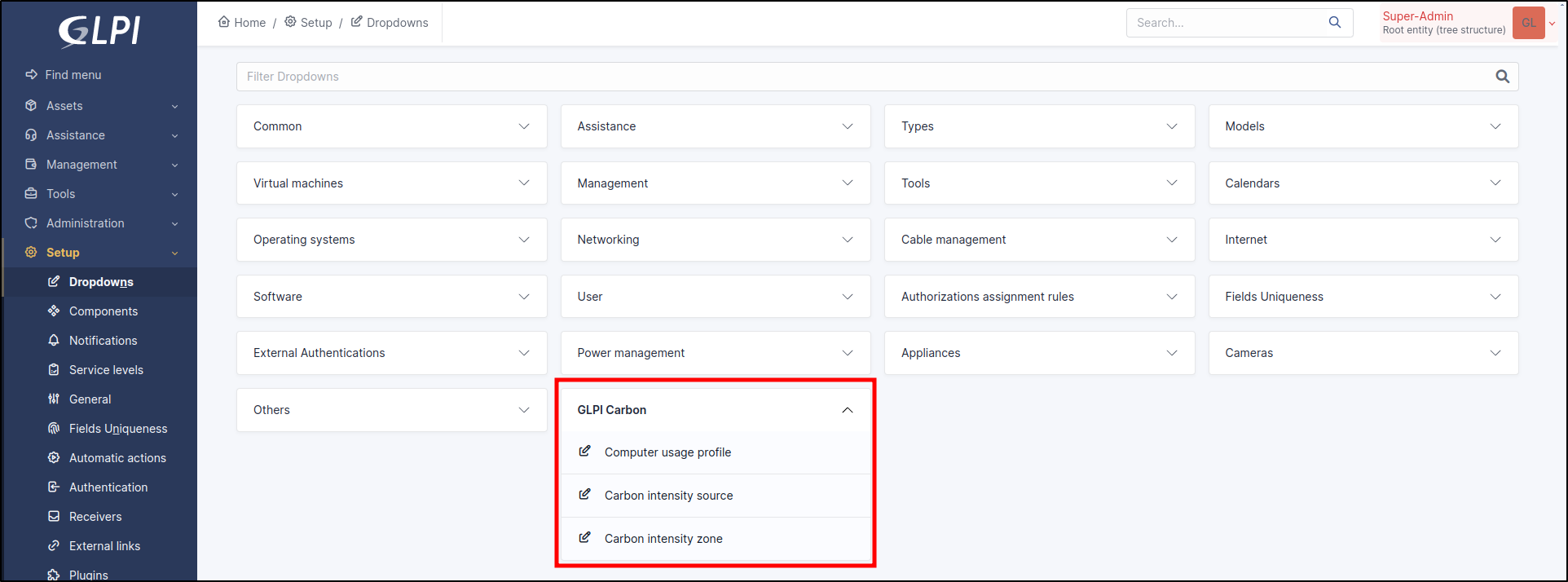
Navigate in GLPI to Setup > Dropdowns > box GLPI Carbon > Carbon intensity sources

Select a data provider
Open the tab Carbon intensity zones
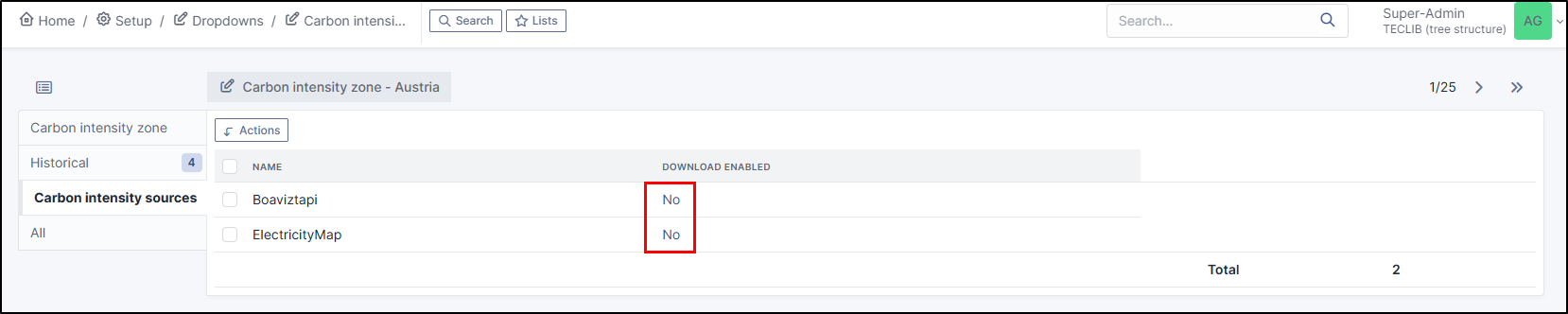
Find the country you want to check or set
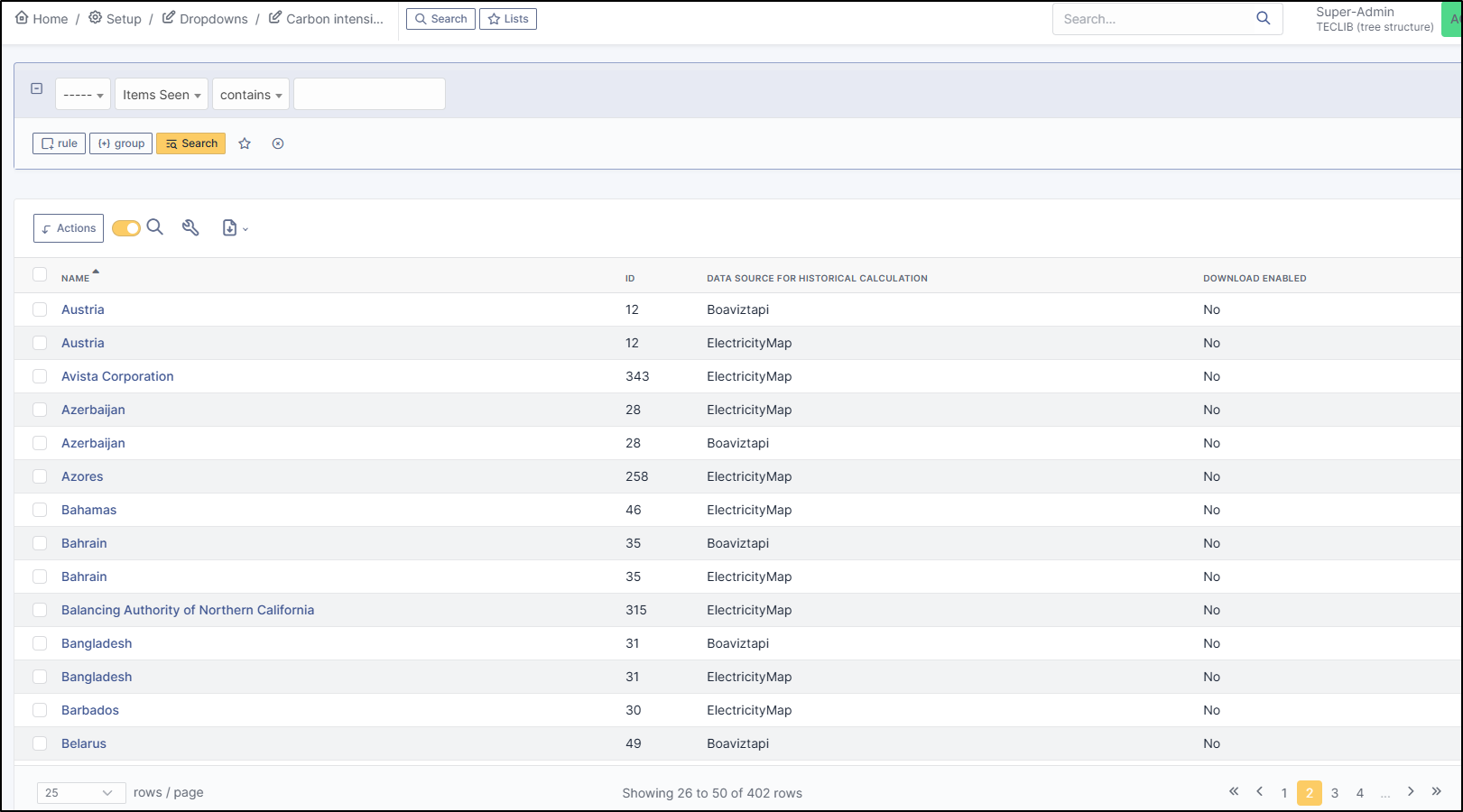
Toggle the flag Download enabled by clicking on its status
Note
If the list of regions or countries is empty then you need to run the automatic action of this source first.
Enable / disable automatic geocoding
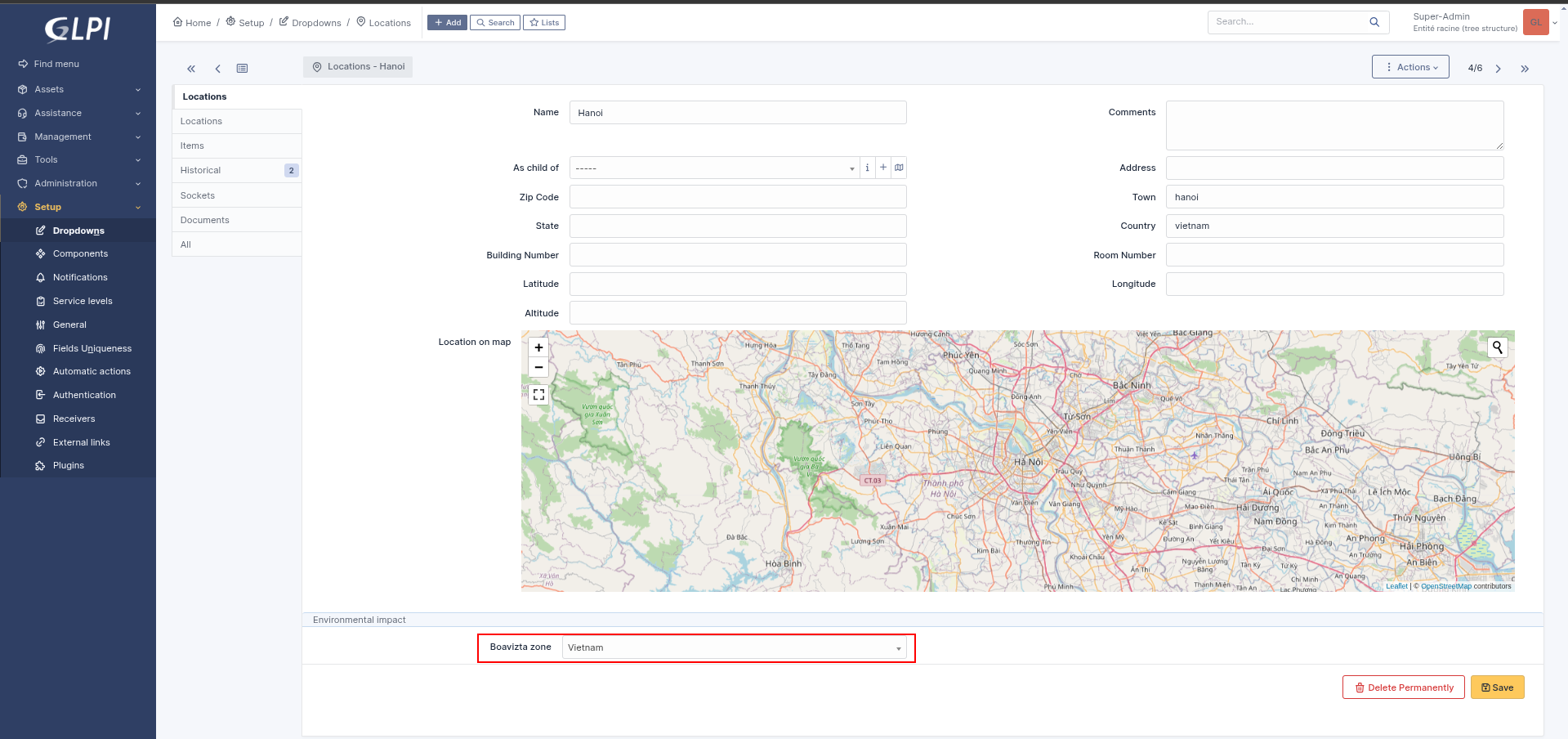
Boaviztapi needs an encoded country designation to improve the accuracy of its results. This is done by the plugin using geocoding services from Nominatim. It is disabled by default and can be enabled in the configuration page of the plugin. When enabled, it monitors changes in locations and tries to resolve the encoded country designation from the fields country, state, and town filled in a location.
It also has an automatic action to find the country designation for locations already in the database at installation time. This automatic action works only if geocoding is enabled, and runs once a day to solve 10 locations at a time to obey the Nominatim usage policy.
Note
If you need to import a large number of locations, disable geocoding first to avoid any abuse, then let the automatic action resolve them slowly.
To enable it, go to Setup > Plugins, locate the Carbon plugin, click on its wrench and check the box Enable geocoding.
When the geocoding feature is disabled, it is advised to select the country field manually. This field is under the map and duplicates the native text field Country from GLPI.
Inventory requirements
All assets
To calculate the emission of greenhouse gas related to energy consumed during use of your assets, the plugin needs to know when an asset is used for the first time and when its services is stopped.
To do so, the plugin searches for the following dates on order of decreasing precedence:
startup date (Financial and administrative informations)
delivery date (Financial and administrative informations)
date of purchase (Financial and administrative informations)
creation date in the inventory
One of these date fields must be populated.

Note
Monitors rely on the location of the computer it is connected to, so there is no need to add it manually
The plugin needs to know where is an asset to determine which carbon intensity is applied to its energy consumption. The associated location must have the field Country filled, in english language.
Each asset must be associated with a model so that the plugin can estimate CO2 emissions as closely as possible. This information can be pre-filled from a template

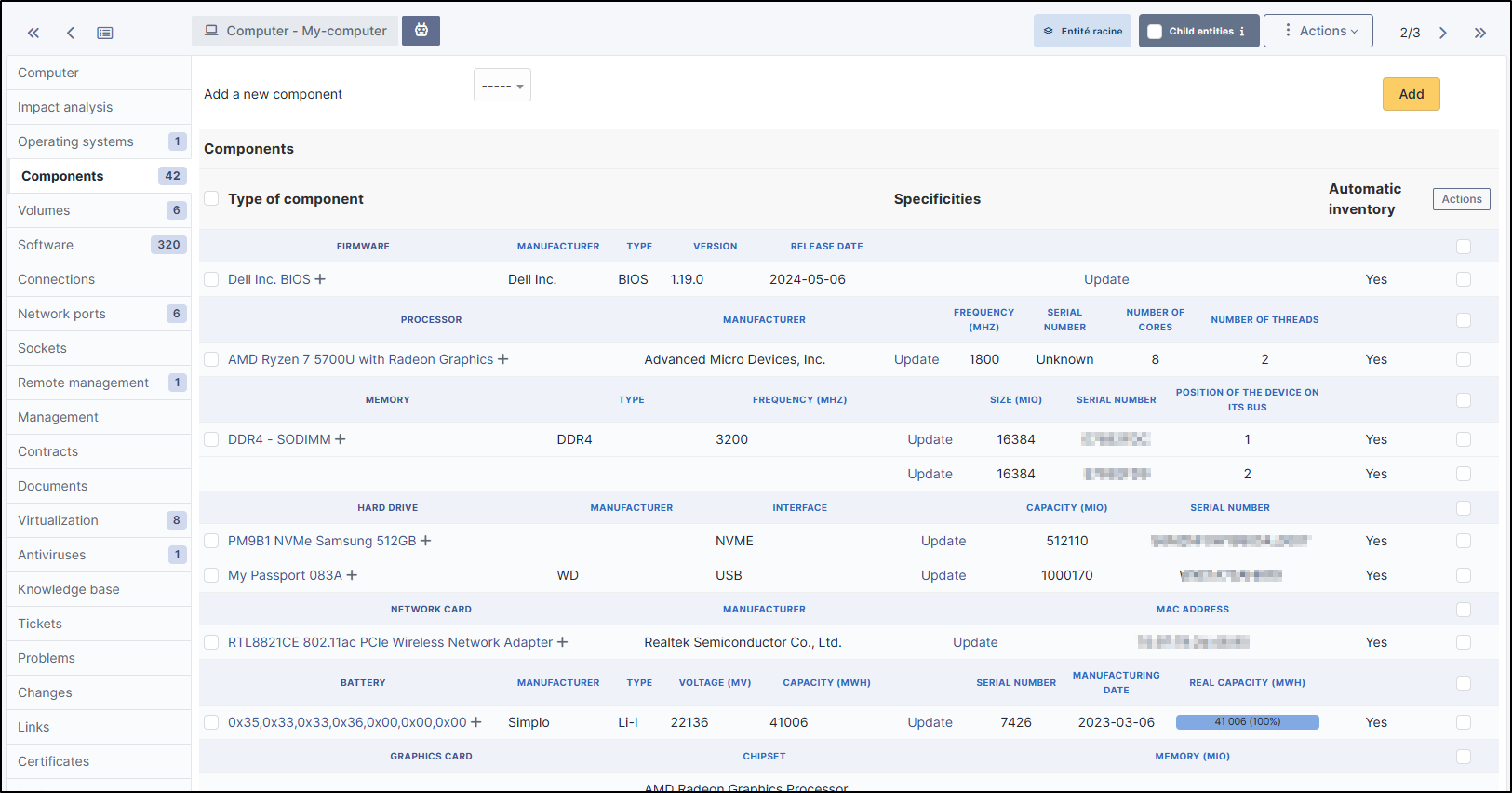
4. It is preferable that the machines be inventoried by an agent so that the components tab is filled in as accurately as possible. It is possible to do this manually but the automatic inventory seems more reliable.
Computers
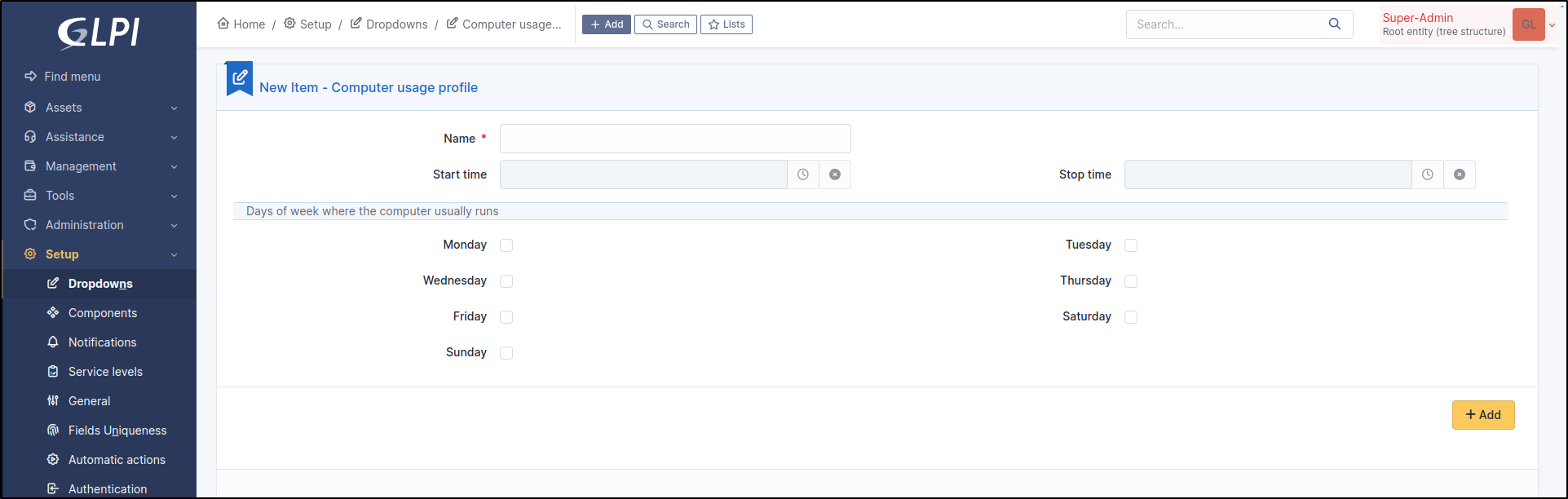
Computers are usually powered on depending on working days and hours. You msut tell when computers are turned on in their tab Environnemental impact. In this place you can assign a usege profile which describes how the computers are powered on.
To create an usage profile, go in Setup > Dropdowns > box GLPI Carbon > Computer usage profiles.
Network equipments
Note
The plugin assumes that the network equipments are powered on 24/7 and therefore there is no usage profile linked to them.
